

VerseView - App Description
================================
APP NAME: VerseView
SHORT DESCRIPTION:
Wireless remote control for VerseView PC software – share songs and verses from your phone
FULL DESCRIPTION:
================================
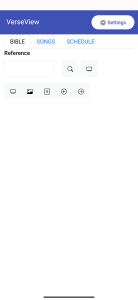
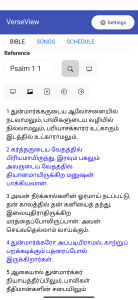
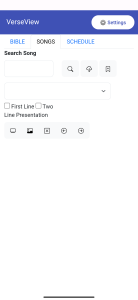
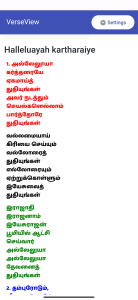
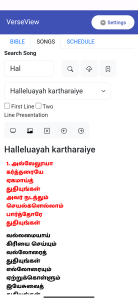
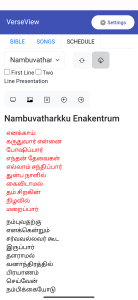
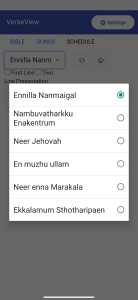
VerseView is the official mobile companion app for VerseView PC software. Turn your Android phone into a wireless remote control for songs and verses.
No more walking back to the computer. Every song change, every verse transition – controlled right from your phone.
HOW IT WORKS:
================================
1. Install VerseView on your PC (download from verseview.com)
2. Open VerseView PC → Go to Remote VerseView Setup
3. Select "localhost" as hostname
4. Your PC shows: http://localhost:50000/control.html
5. Find your PC's IP address
6. Replace "localhost" with your PC's IP
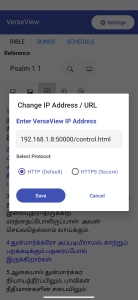
7. Enter that address in VerseView app – just once!
EXAMPLE:
================================
PC shows: http://localhost:50000/control.html
Your PC's IP is: 192.168.1.100
You enter: 192.168.1.100:50000/control.html
FEATURES:
================================
✅ One-Time Setup – Enter your PC's IP address once, never again
✅ Instant Connection – Opens directly to your control panel on every launch
✅ Protocol Selection – Choose HTTP or HTTPS
✅ Full-Screen Display – Edge-to-edge with notch support
✅ Settings Button – Change IP address anytime
✅ Back Navigation – Navigate web pages with back button
✅ Clean Interface – Modern blue-violet design
PERFECT FOR:
================================
- Worship leaders sharing song lyrics
- Pastors controlling verse displays
- Presenters managing presentations
- Teachers sharing content from phone
- Anyone using VerseView PC software
HOW TO FIND YOUR PC'S IP ADDRESS:
================================
WINDOWS:
1. Open Command Prompt
2. Type ipconfig
3. Look for "IPv4 Address" (e.g., 192.168.1.100)
MAC:
1. System Settings → Network
2. Select your connection
3. Look for "IP Address"
REQUIREMENTS:
================================
- Android Version: 7.0 (API 24) or higher
- PC Software: VerseView (latest version)
- Network: Same Wi-Fi network for phone and PC
- Internet: Local network only (no cloud required)
PRIVACY:
================================
- No personal data collected
- No account required
- No cloud storage
- All settings saved locally on your device
- Only permission needed: Internet (to connect to your PC)
GET STARTED IN 3 SIMPLE STEPS:
================================
Step 1: Download VerseView PC from verseview.com
Step 2: Install VerseView app on your Android phone
Step 3: Enter your PC's IP address once and start presenting
================================
No subscriptions. No hidden fees. Completely free.
================================
TAGS:
verseview, remote control, presentation remote, song display, verse sharing, wireless control, worship tools, presentation controller
CATEGORY: Tools
CONTENT RATING: Everyone
PRICE: Free
PLATFORM: Android 7.0+
SIZE: ~10 MB
VERSION: 1.0.3
================================
================================
APP NAME: VerseView
SHORT DESCRIPTION:
Wireless remote control for VerseView PC software – share songs and verses from your phone
FULL DESCRIPTION:
================================
VerseView is the official mobile companion app for VerseView PC software. Turn your Android phone into a wireless remote control for songs and verses.
No more walking back to the computer. Every song change, every verse transition – controlled right from your phone.
HOW IT WORKS:
================================
1. Install VerseView on your PC (download from verseview.com)
2. Open VerseView PC → Go to Remote VerseView Setup
3. Select "localhost" as hostname
4. Your PC shows: http://localhost:50000/control.html
5. Find your PC's IP address
6. Replace "localhost" with your PC's IP
7. Enter that address in VerseView app – just once!
EXAMPLE:
================================
PC shows: http://localhost:50000/control.html
Your PC's IP is: 192.168.1.100
You enter: 192.168.1.100:50000/control.html
FEATURES:
================================
✅ One-Time Setup – Enter your PC's IP address once, never again
✅ Instant Connection – Opens directly to your control panel on every launch
✅ Protocol Selection – Choose HTTP or HTTPS
✅ Full-Screen Display – Edge-to-edge with notch support
✅ Settings Button – Change IP address anytime
✅ Back Navigation – Navigate web pages with back button
✅ Clean Interface – Modern blue-violet design
PERFECT FOR:
================================
- Worship leaders sharing song lyrics
- Pastors controlling verse displays
- Presenters managing presentations
- Teachers sharing content from phone
- Anyone using VerseView PC software
HOW TO FIND YOUR PC'S IP ADDRESS:
================================
WINDOWS:
1. Open Command Prompt
2. Type ipconfig
3. Look for "IPv4 Address" (e.g., 192.168.1.100)
MAC:
1. System Settings → Network
2. Select your connection
3. Look for "IP Address"
REQUIREMENTS:
================================
- Android Version: 7.0 (API 24) or higher
- PC Software: VerseView (latest version)
- Network: Same Wi-Fi network for phone and PC
- Internet: Local network only (no cloud required)
PRIVACY:
================================
- No personal data collected
- No account required
- No cloud storage
- All settings saved locally on your device
- Only permission needed: Internet (to connect to your PC)
GET STARTED IN 3 SIMPLE STEPS:
================================
Step 1: Download VerseView PC from verseview.com
Step 2: Install VerseView app on your Android phone
Step 3: Enter your PC's IP address once and start presenting
================================
No subscriptions. No hidden fees. Completely free.
================================
TAGS:
verseview, remote control, presentation remote, song display, verse sharing, wireless control, worship tools, presentation controller
CATEGORY: Tools
CONTENT RATING: Everyone
PRICE: Free
PLATFORM: Android 7.0+
SIZE: ~10 MB
VERSION: 1.0.3
================================
Updated on
May 20, 2026
